
Quick Start
From the downloaded installer to live quotes in about five minutes. The app does the fiddly parts; the three clicks inside MetaTrader stay yours.
- 1
Run the installer
Double-click
QuoteBridge-Setup-0.2.0-x64.exein your Downloads folder.Windows may warn you. The installer isn't code-signed yet, so SmartScreen may say Windows protected your PC. Choose More info, then Run anyway.
- 2
Accept the licence
QuoteBridge is free and open source under the MIT licence. Click I Agree.
- 3
Keep the install folder
The default folder is in your own user profile, so the installer never asks for administrator rights. Click Next, then Install.
Choose another folder only if it is empty or new.
- 4
Let it install
It takes under a minute. Click Finish, and the app starts and opens its setup screen.
- 5
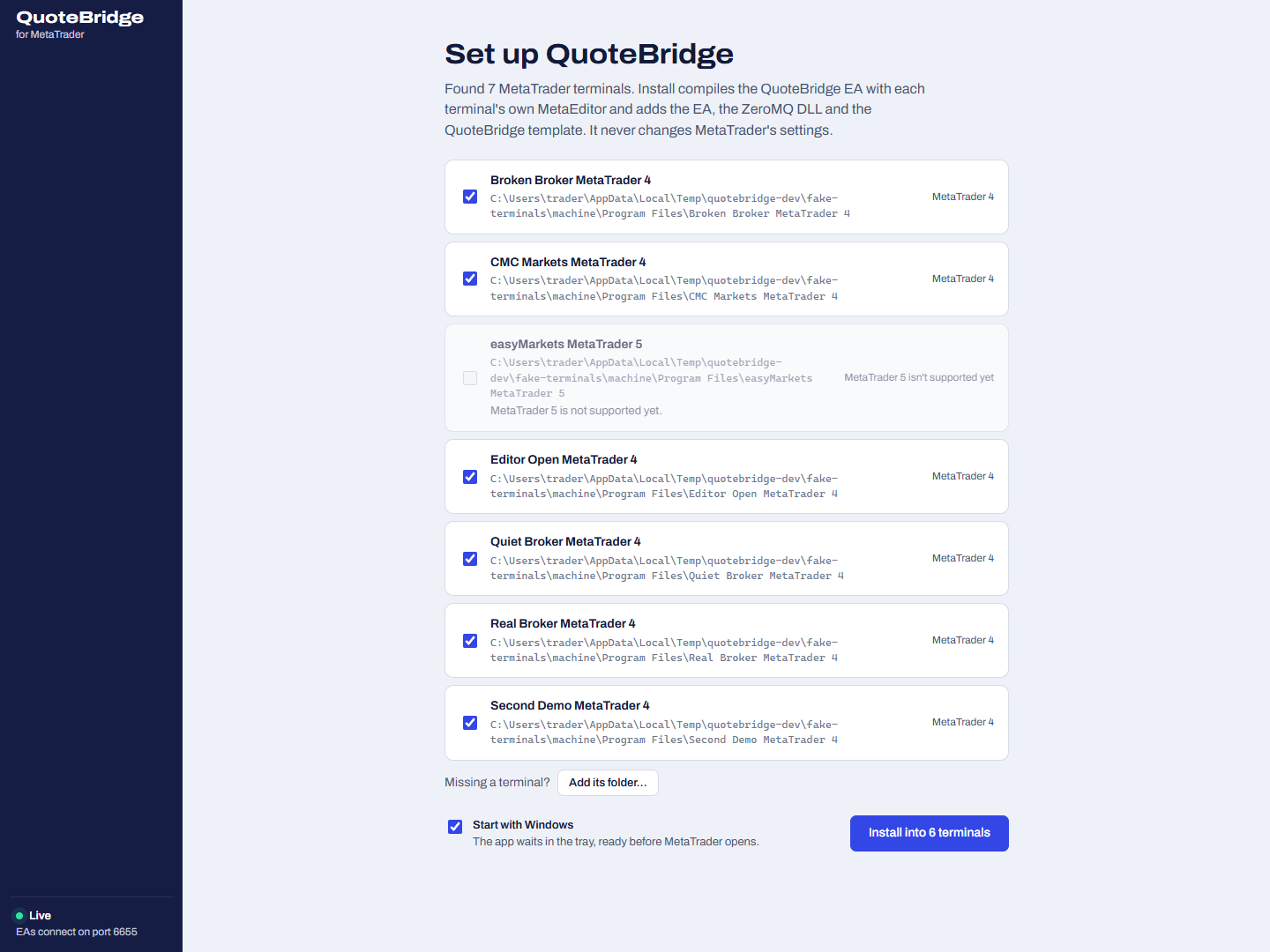
Pick your terminals
The setup screen lists every MetaTrader terminal on your PC and ticks the MetaTrader 4 ones. Click Install: the app compiles the bridge with each terminal's own MetaEditor and installs it.
It never changes MetaTrader's settings, and never touches your own templates.
- 6
Connect each terminal
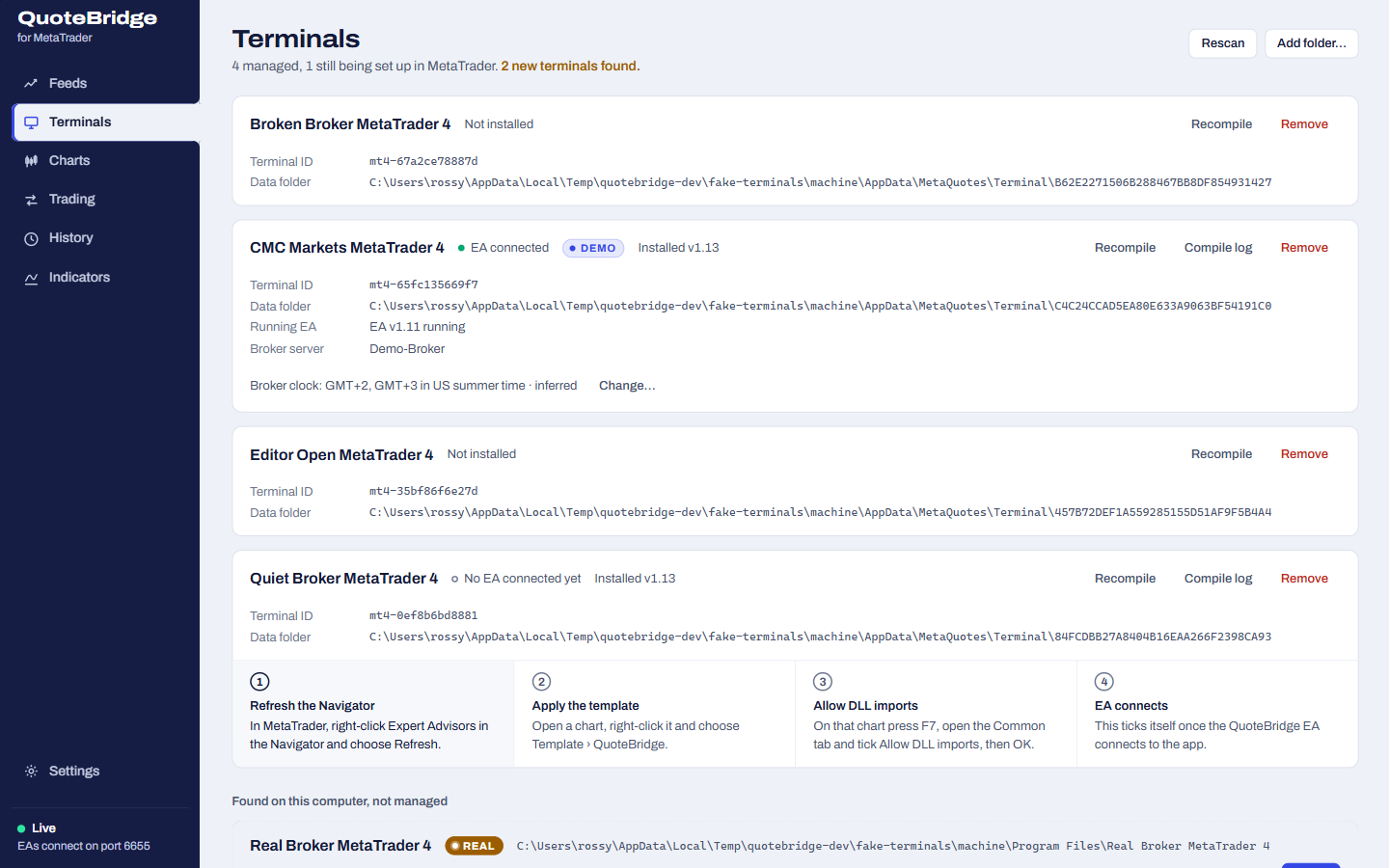
Three clicks in each MetaTrader terminal. The app shows them as a checklist on the terminal's card, and ticks each one off as you go.
aRefresh the Navigator
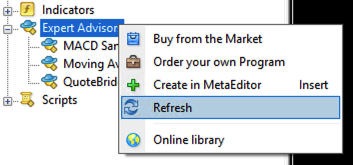
In the Navigator, right-click Expert Advisors and choose Refresh. QuoteBridge now shows up in the list.
bApply the template
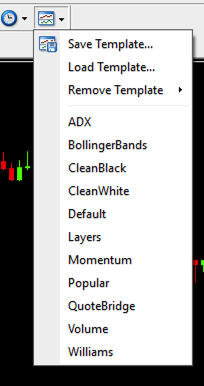
Open a chart of a symbol you want, then choose QuoteBridge from the toolbar's Templates menu (or right-click the chart › Template). You can also drag QuoteBridge from the Navigator onto the chart.
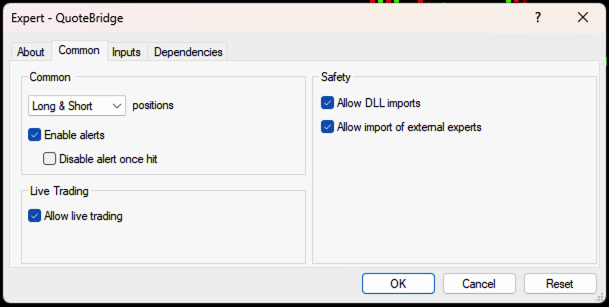
cAllow DLL imports
In the EA's window that opens (or press F7 on the chart), open the Common tab, make sure Allow DLL imports is ticked and click OK.
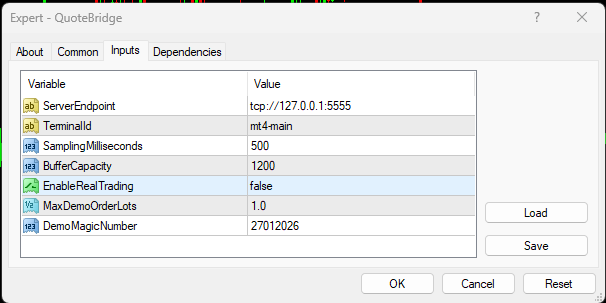
Trading a real account? Off by default
Demo accounts can trade from any chart. A real account stays read-only until you allow it in two places:
- On exactly one chart of the account, press F7, open Inputs and set EnableRealTrading to true (it is false by default).
- In QuoteBridge, switch on Real-account trading in Settings › Trading and confirm its risks.
- 7
Watch the quotes arrive
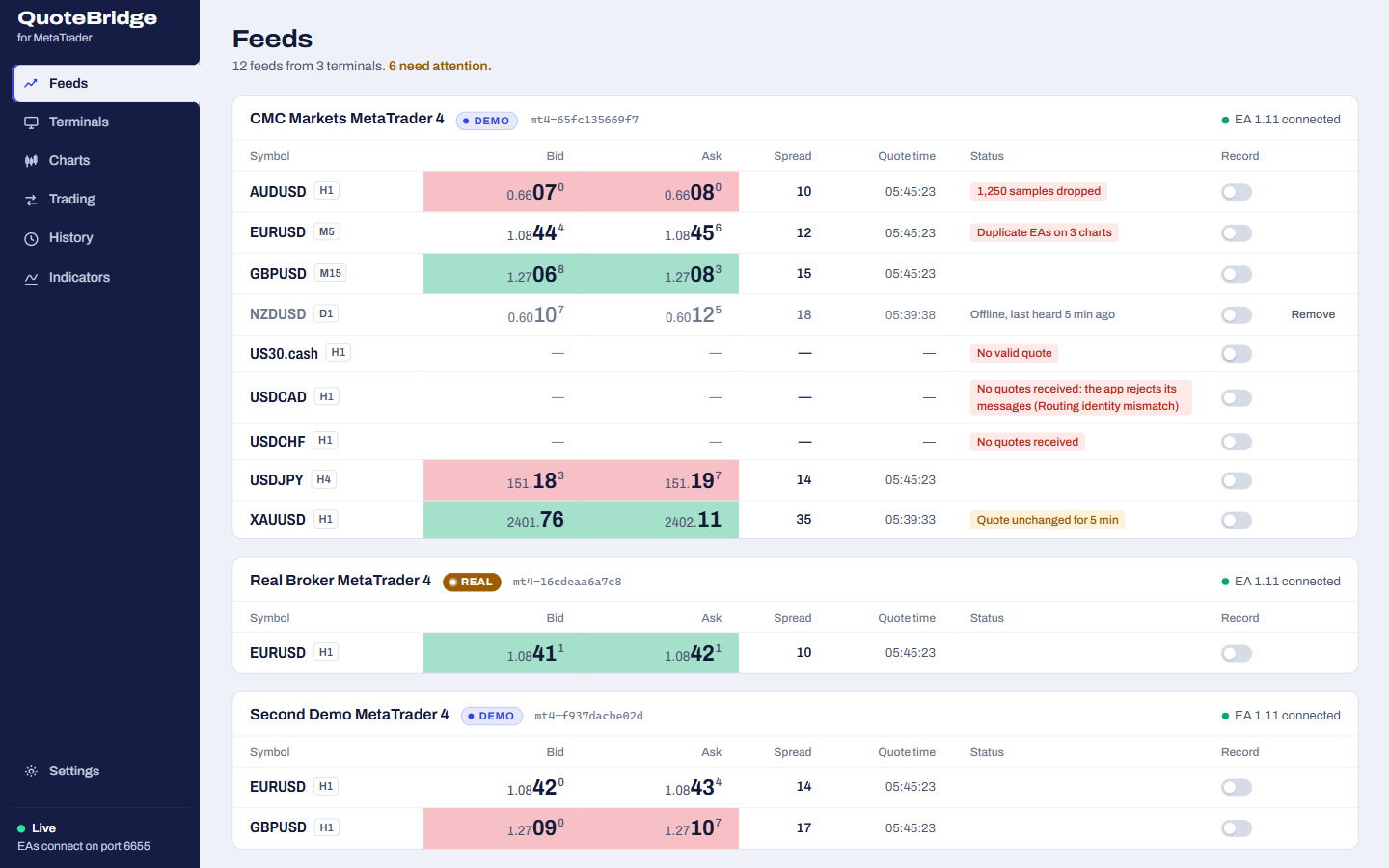
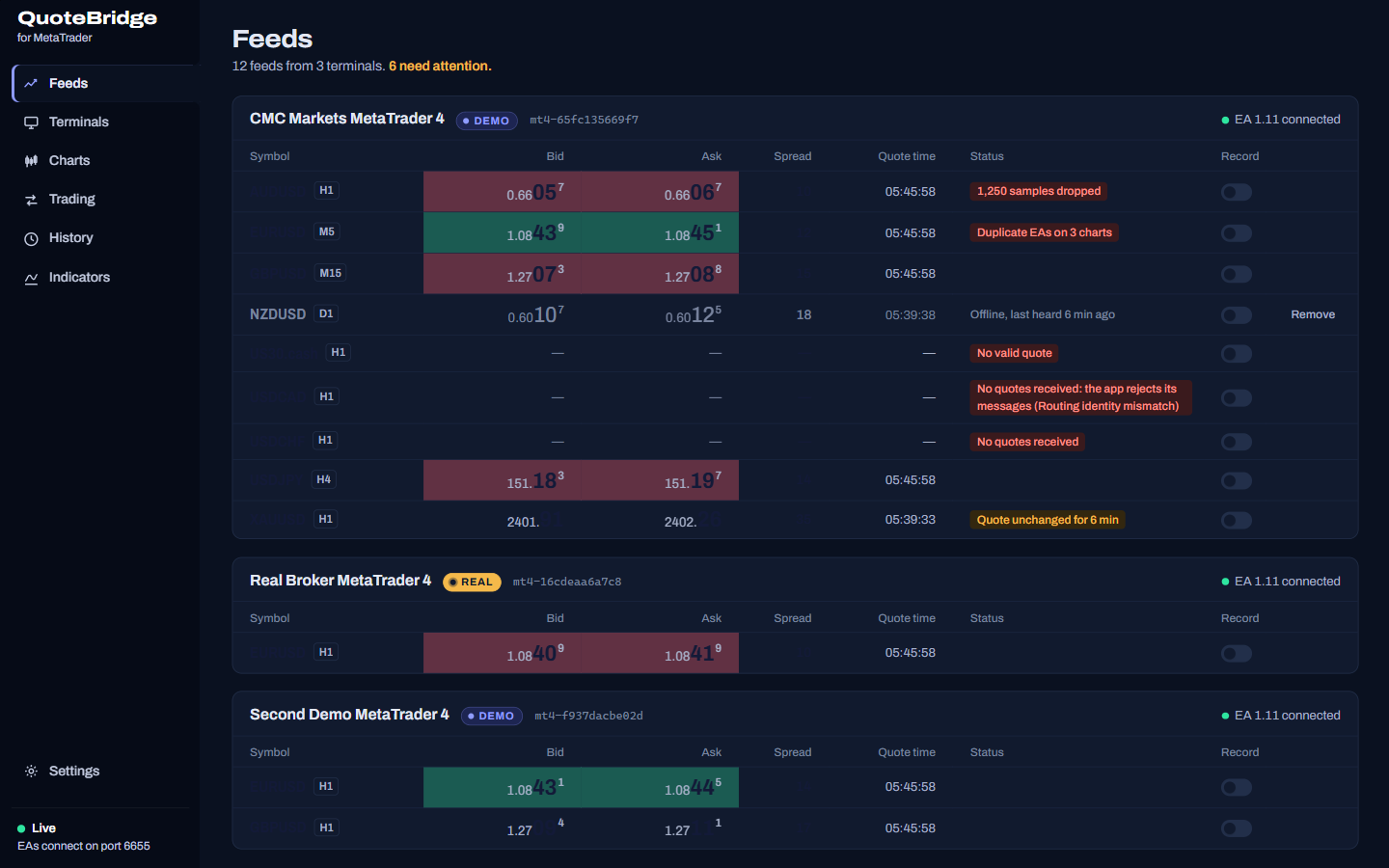
The checklist ticks itself off when the EA connects, and the chart's quotes appear in Feeds. Apply the template to one chart per symbol you want to follow.

Where next
- Charts, history and tradingThe rest of the tour: charts, recording, indicators, and trading on demo and real accounts.
- The command lineInstall
mt4-quote-bridgewith npm, sign in with an API key and read quotes from any script. - An AI agentAdd the skill to Claude Code, Codex, Grok Bot, Dots or Muse and ask in plain words.
- Updating and uninstallingRun a newer installer over the current version; your settings and data stay.