
Trading
QuoteBridge trades on demo accounts, across as many accounts and brokers as your terminals are signed in to.
Real accounts are shown and readable, and stay read-only unless you allow them to trade with two separate switches:
Real-account trading in the app's Settings and EnableRealTrading on one of the account's charts. Every view marks
each account and terminal Demo or Real. This page explains the model and the gates; the
Trading page describes the app window's view, the CLI the command line, and the
REST API the contract both use.
Accounts, not an active account
- A trading account is a broker server and a login. Several terminals signed in to the same account add sources, not accounts. Terminals change login, so an account follows whichever terminals are signed in to it now.
- A market is a broker server and a symbol. A trade on an account uses that account's broker server's market;
another broker's
EURUSDis a different market and is never substituted. - There is no active or default account. Every new order names its account, and every change to an existing trade names the account and the ticket (tickets are unique only within an account). Filters on the Trading page and charts only change what you see; they never choose where a trade goes.
- Funds, positions and pending orders are read fresh from one terminal of the account. Money is in that account's currency, and QuoteBridge never adds up money across accounts. After a restart, an account is listed offline with no Funds until a terminal reconnects; nothing is shown as zero that is unknown.
What has to be true before a trade
Every gate is checked by the app, and the account-kind and trading-chart gates again by the EA. You set MetaTrader up;
QuoteBridge never changes MetaTrader settings or permissions. Whether an account is demo or real is what MetaTrader
reports (IsDemo()), never a setting.
- Trading is on for the account's kind in the app window's Settings › Trading, both off by default: Demo trading for demo accounts, Real-account trading for real ones. Each switch is independent: Demo trading never lets a real account trade. Switching Real-account trading on asks you to acknowledge its risks first. Only the app window can switch them, set the app's lot cap (default 1.0) or slippage (default 20 points); no API key, CLI or remote browser can.
- A trading chart for the account. One chart of the account, its executor, sends every trade for the
account, whatever the symbol; the other charts keep supplying quotes.
Demo account: any chart running EA 1.13 or later can trade; there is no input to set. With several, the app uses the first ready one (by terminal, then chart). An older EA trades only with its old input
EnableDemoTrading=true; with none, the account showszero.Real account: exactly one chart with the EA input
EnableRealTrading=true(EA 1.13 or later; F7 › Inputs). It isfalseby default. With none, the account showsreal-accountand stays read-only; with more than one,multiple.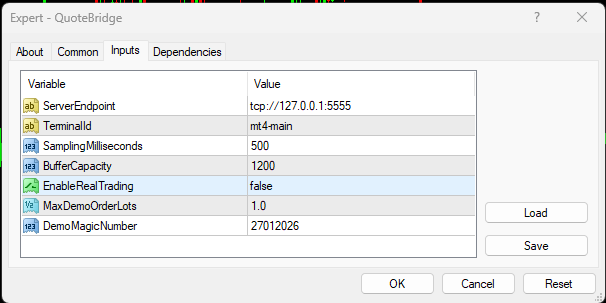
- The executor is ready: MetaTrader is connected, AutoTrading is on, the EA may trade (its Allow live
trading option), and the EA sees fresh server time. A chart that is enabled but not ready shows
not-ready. - The EA's cap is known and positive. The EA input
MaxDemoOrderLots(default 1.0, needs EA 1.12 or later) caps new orders at the EA, on demo and real accounts alike.
The account list (Trading page, accounts list) shows each account's executor state: ready, zero, multiple,
not-ready or real-account (a real account with no EnableRealTrading chart).
Real accounts
Orders on a real account use real money: with leverage, price gaps and slippage a loss can exceed the stop loss and the
margin held. Once both switches are on, the Trading page, chart orders, trader API keys and the CLI can all place,
change, close and cancel the account's trades, through the same preview and execute as on demo. The order dialog marks
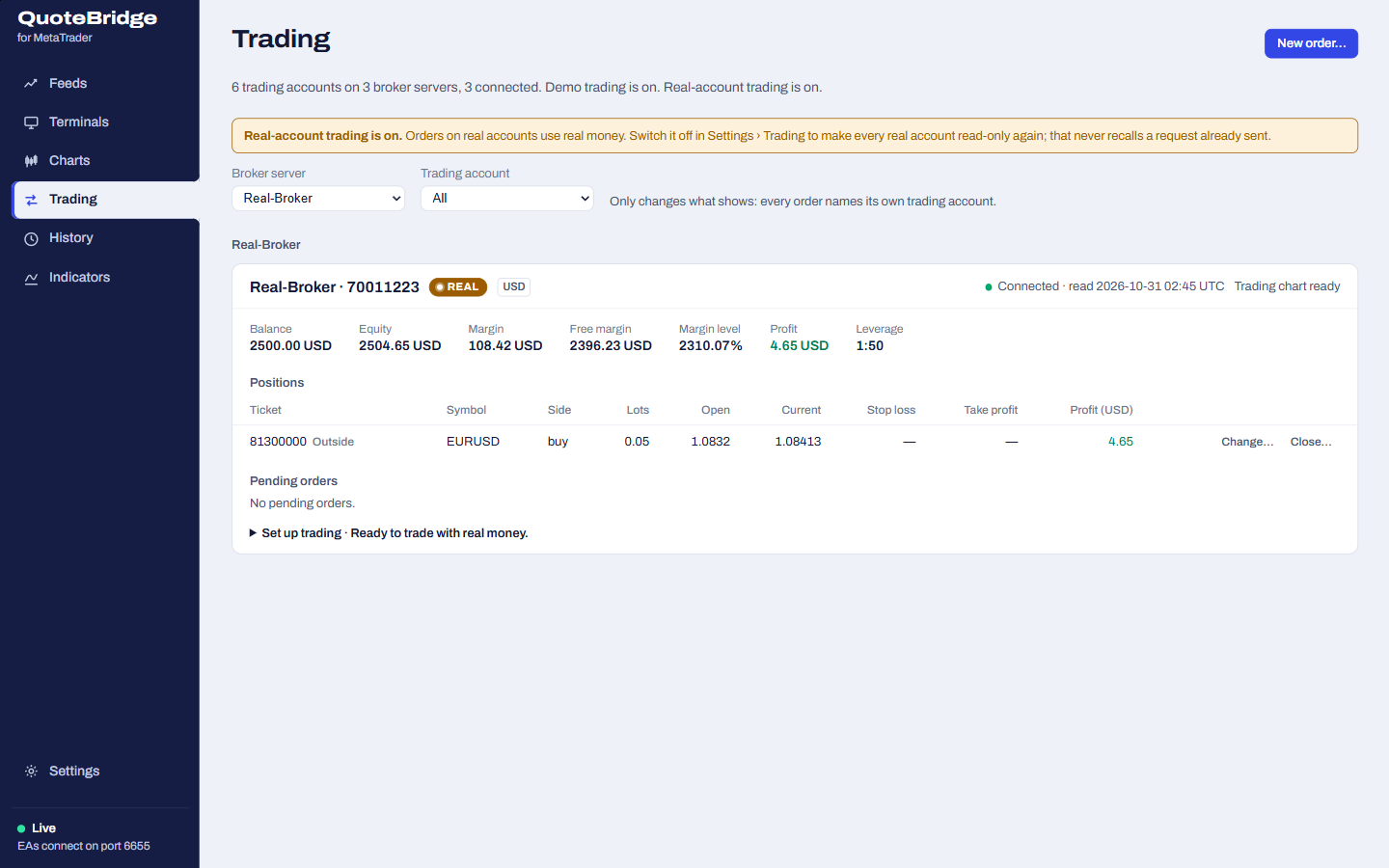
a real account's order, and the Trading page says while Real-account trading is on. Switching it off blocks every new
request on real accounts at once, but cannot recall one already sent.
If an account cannot trade
The Trading page says why under the account, and the order dialog under its list of accounts:
| You see | Do this |
|---|---|
| Demo trading is off. | Switch on Demo trading in the app window's Settings › Trading. |
| Real accounts are read-only while Real-account trading is off… | Switch on Real-account trading in Settings › Trading, read the risks and confirm. |
| No chart of this real account has the EA's input EnableRealTrading set to true. | In MetaTrader, on one chart of the account, press F7, open Inputs and set EnableRealTrading to true. |
| More than one chart of this account has EnableRealTrading set to true. | Set it back to false on every chart but one. |
| No chart of this account can trade: its EA is older than 1.13… | Click Recompile on the terminal's card in Terminals to update its EA. |
| The account's trading chart is not ready… | Switch on AutoTrading in MetaTrader, and tick Allow live trading in the EA's Common tab (F7). |
Lot caps and slippage
A new order's lots must fit the broker's minimum and step and be at most the smallest of three caps: the broker's
maximum, the EA's MaxDemoOrderLots and the app's lot cap. Every preview shows all three and the result. The app never
raises a cap. Closing, modifying or cancelling a larger existing trade is not refused for exceeding a cap: caps limit
new volume.
Slippage (points) is how far the price may move from the previewed price for a market order or a close. A fill is not guaranteed.
Changing the lot cap or slippage, or switching Demo or Real-account trading, discards every preview not yet executed. Switching either off blocks every new preview and execute on those accounts, including closes and cancels, but cannot recall a request already sent. In an emergency, act in MetaTrader directly.
Preview, execute, result
Every change goes through a request, with its own ID (distinct from MetaTrader's ticket):
- Preview. QuoteBridge reads the account and the market's contract fresh from the executor (within five seconds), checks lots, caps, tick size, stop and freeze levels and margin, and answers the exact normalized order it would send, with limits, estimates and warnings. Nothing is sent. A preview lasts 30 seconds and is discarded when the account, its executor or chart, or the trading settings change.
- Execute that exact preview, explicitly. QuoteBridge checks everything again, records the request durably, then sends it once. If the target trade changed meanwhile, or the price moved beyond what was approved, execute refuses and you preview again.
- Result.
succeeded(with the ticket),failed(MetaTrader or the EA refused it, with its code and message), orunknown.
At most one request per account is unresolved at a time; other accounts carry on independently.
Stops are absolute (stop loss and take profit prices, which may be left out, with a warning), stop distances, or a risk plan. Stop distances are points from the entry the preview approves, each optional: a buy's stop loss below the entry and its take profit above, a sell's the reverse. A risk plan is a loss as an amount of the account's currency, a percentage of the balance or a distance in points, plus a reward ratio. Both are worked out into prices rounded toward the entry; stops that cannot be met are refused, never widened. Estimates exclude fees, swaps and slippage and are not a guaranteed loss limit.
Existing trades, including ones placed outside QuoteBridge (they carry a warning), can be modified (stop loss, take profit; a pending order's entry and expiry), closed in full or, if pending, cancelled. There are no partial closes or lot changes.
Unknown outcomes and review
A request becomes unknown when no definitive result arrives within 20 seconds, when sending may have been interrupted, or when the app restarts while it was being sent. It may or may not have reached the broker.
- Never send it again, and never preview the same trade again to find out. Read the request instead (Trading
page, or
mt4-quote-bridge requests show <id>). A late result still settles it. - An unknown request blocks only its own account, previews included. To unblock it, check MetaTrader's open orders and account history, then review the request with a note of what you found (8–500 characters) and the acknowledgement that you checked. Review does not invent an outcome (the status stays unknown, marked reviewed) and never resends anything. It works with Demo and Real-account trading off.
- Requests are kept indefinitely; there is no delete.
While a terminal's request is unresolved, an EA update for that terminal waits. Quitting the app warns about unresolved requests; after a restart they become unknown.
Who may trade
| Surface | May |
|---|---|
| App window | Everything, including Settings › Trading and API keys |
| Remote browser (signed in from the app) | View, preview, execute and review; no settings or keys |
API key trader |
Every read, preview, execute and review |
API key readonly |
Every read; any change answers 403 insufficient-scope |
Previews have no owner: any surface allowed to trade may execute a valid preview. Agents using the CLI's skill prepare previews and execute one only after you approve that exact preview.
This page is docs/trading.md in the app's repository.View on GitHub