
The Trading page and chart orders
The dashboard's Trading view shows every trading account QuoteBridge knows, and places, changes, closes and cancels demo trades through the same request engine as the REST API and the CLI. How accounts, demo gates and unknown results work is in the trading manual; this page describes the screens.
No active account
QuoteBridge never trades on "the current account". Each account is a panel of its own, grouped under its broker server:
- Funds: balance, equity, margin, free margin, margin level, profit and leverage, each in the account's own currency. Money is never added up across accounts.
- Positions and Pending orders, including trades placed outside QuoteBridge (flagged Outside). Each row's Change…, Close… and Cancel… are bound to that row's account and ticket.
- Set up trading: the account's checklist (below).
The Broker server and Trading account filters only change which panels show. They never decide where an order goes.
New order… opens the order dialog with no account chosen: pick the account, then a symbol of that account's own broker server. Changing the account clears the symbol, so an order can never land on another broker's market.
Once the market is known, the dialog shows its live Bid and Ask, the same numbers as Feeds. A buy fills at Ask and a sell at Bid, so the side's price is highlighted. For a limit or stop order they are a reference only. When a market has several feeds, the one with the newest broker quote gives the price. A feed that has sent no new quote for 5 seconds keeps its price, with a note saying how long. Without a live quote (no feed for the market, no valid quote, a quote unchanged for a while, an offline feed or a lost connection to the app) the dialog shows dashes and the reason, never an old price.
Once the market is known, the dialog also fills in that market's order defaults (see Settings › Trading): Lots and, as Distance stops, the stop loss and take profit in points from the entry. Change any of them before Preview. Choosing another market replaces the defaults it filled in, but keeps what you typed. Without defaults the fields start empty. The trading account is never chosen for you.
Each account's head says Demo or Real (a solid amber pill), as Feeds and Terminals do for each terminal. Real accounts show their Funds and trades but no actions while Real-account trading is off. With it on, a real account trades like a demo one, and the page and the order dialog say that its orders use real money. An account whose terminal has not yet said whether it is a demo account (Demo or real?) cannot trade until it does. An offline account shows its last snapshot as stale, or dashes when the app has none since it started.
Preview, then send
Every action previews first. The preview shows exactly what the app approved: the account and terminal, the order (side, type, lots, price), stop loss and take profit (worked out from stop distances or a risk plan, if you chose one), expiry, slippage, the lot limits (broker, EA and app caps and the resulting maximum), estimates and warnings, with a countdown to its expiry (30 seconds).
- Enter never sends. Enter in the dialog previews, or previews again; after a preview the focus moves to the preview itself. Only the Send to MetaTrader button sends, and only that exact preview.
- An expiry is entered in this computer's time. Other times on the page follow Settings › Appearance › Time shown.
- Any change discards the preview: an input, the account, the account going offline or getting an unresolved request, its trading chart or EA cap, Settings › Trading, or the trade itself changing or closing in MetaTrader. Preview again.
- A new quote does not discard a preview: the preview keeps the price and expiry it was approved with.
- After sending, the dialog follows the request until MetaTrader answers: Succeeded, Failed with the broker's code and message, or Unknown.
Unknown results and review
When MetaTrader's answer does not arrive within 20 seconds, the request's outcome is Unknown. A banner names the affected account; only that account waits, and the others stay usable. Never send the same order again to find out:
- Check the account's open orders and history in MetaTrader.
- In Requests, choose Review…, confirm you checked MetaTrader and write what you found (8–500 characters).
A review unblocks the account. The request then shows Reviewed (outcome unknown): a review records your check, it does not invent a result, and nothing is resent. A late answer from MetaTrader still settles it.
Set up trading
Each account's checklist (a real account's only while Real-account trading is on) shows whether it can trade:
- A chart of the account with the QuoteBridge EA running. Any chart of a demo account can trade; with several, the first ready one does.
- A real account only: in exactly one of its charts, the EA input EnableRealTrading set to true (F7 › Inputs, EA 1.13 or later).
- AutoTrading on in MetaTrader and live trading allowed in that EA's Common tab.
- Demo trading (a real account: Real-account trading) on in the app window's Settings › Trading.
QuoteBridge only detects these: every change in MetaTrader is yours, and the app never edits MetaTrader's settings or
the EA's inputs. New orders are capped at the smallest of the broker's maximum, the EA's MaxDemoOrderLots and the
app's lot cap; closing, changing or cancelling a larger existing trade is not limited by the caps.
Charts
A chart shows the entry, stop loss and take profit of every account's positions and pending orders on exactly that market (its broker server and symbol), labelled with the account's login and the ticket: entry in slate, a pending entry in violet, stop loss in gold and take profit in azure. The lines are read-only; nothing is dragged to trade. Trades in the toolbar hides them all, and Accounts chooses whose lines show.
Buy… and Sell… open the order dialog for the chart's market. It lists only demo accounts on the chart's broker server (and its real accounts while Real-account trading is on), and you must choose one even when there is just one. A symbol of the same name at another broker is another market: QuoteBridge never substitutes it.
Settings › Trading
Only the app window changes these; a remote browser sees them read-only.
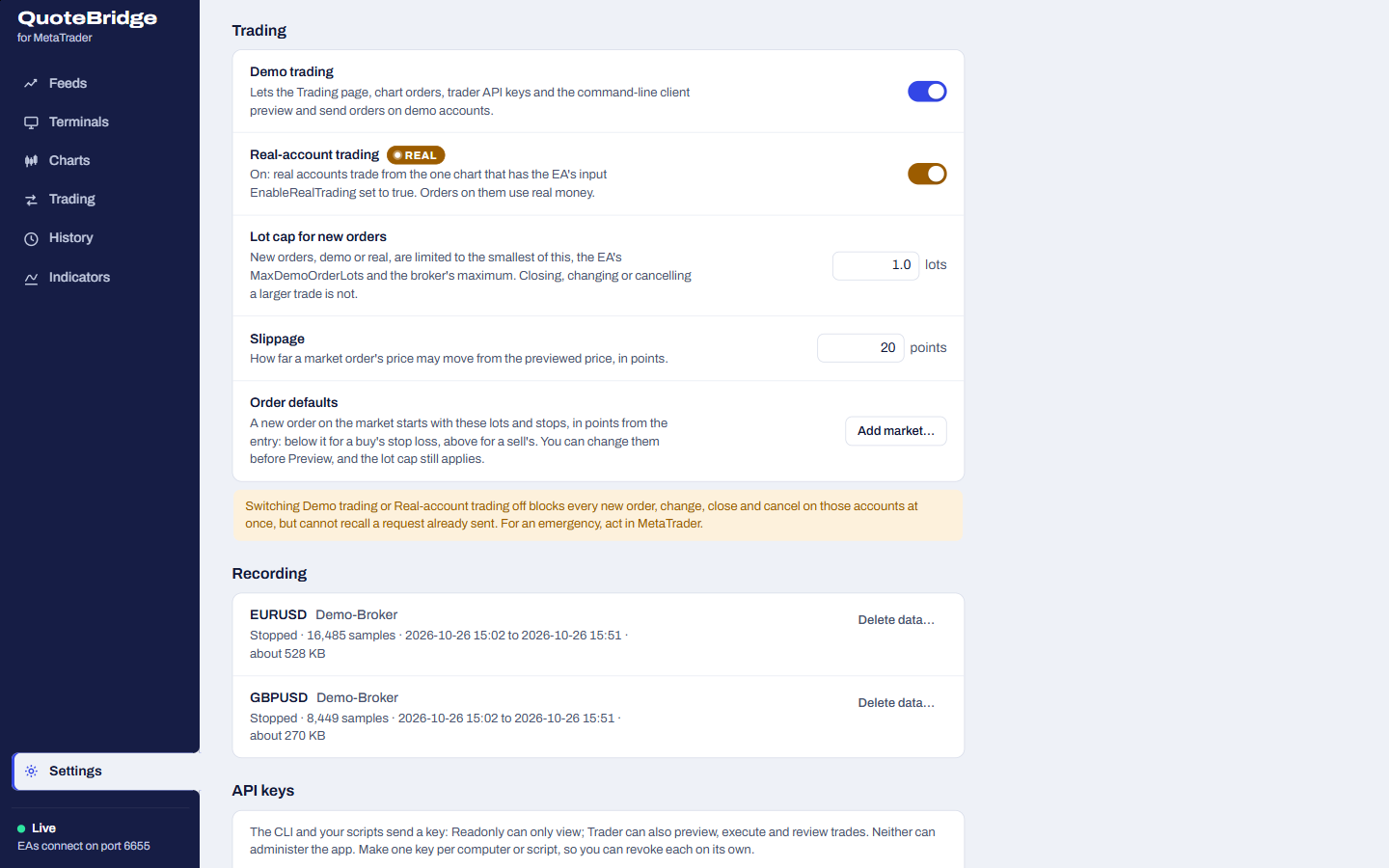
Demo trading (off by default). Switching it off blocks every new order, change, close and cancel at once. It cannot recall a request already sent: for an emergency, act in MetaTrader. Sent requests are still followed and can be reviewed while it is off.
Real-account trading (off by default) lets real accounts trade, from the one chart of each with the EA input
EnableRealTrading=true. Switching it on shows its risks and needs your acknowledgement; switching it off applies at once, blocks every new request on real accounts and, like Demo trading, recalls nothing already sent. It is independent of Demo trading.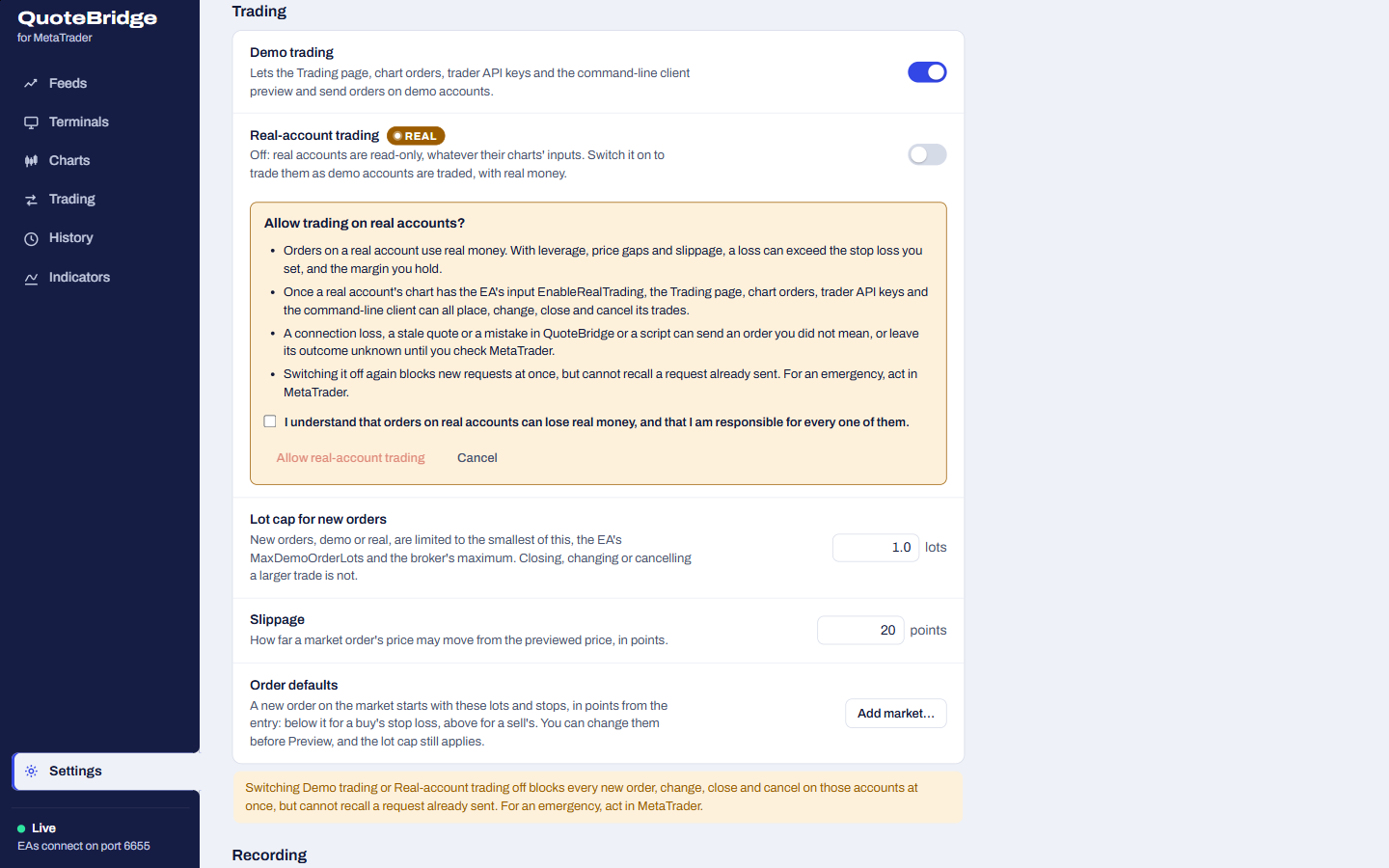
Lot cap for new orders (1.0 by default) and Slippage (20 points by default). A change discards open previews.
Order defaults: per market (symbol and broker server), the lots, stop loss and take profit a new order starts with; each is optional. Stop loss and take profit are points from the entry, so they follow the price and the side. Add market… lists the markets the app knows. A default above the lot cap is refused at Preview, like a typed value. Changing defaults never discards a preview.
While you add or edit a market, the form shows what the market itself defines, read from a connected account's terminal on its broker server: what 1 point is in price and about what it is worth per lot (when the terminal reports a tick value), the broker's lot minimum, maximum and step, the minimum stop distance (stop level; there is no maximum) and the spread now. Under each stop distance you see its price move and about its money at the default lots. Stops are measured from the closing price, so a market order's stop loss needs the stop level plus the spread. A value Preview would refuse (lots off the market's limits, its step or the lot cap; a stop too close) is marked, but can still be saved: Preview checks again with the figures of that moment. Without a connected account on that broker server, the form says so and works as before.
This page is docs/trading-page.md in the app's repository.View on GitHub